
For iPhone · Coming soon
Walk in.
Lock in.
Block distracting apps when you reach your saved place. Focus solo, or lock in with your crew.
Your places stay on your iPhone. Crews see that you’re focusing, never where.
How it works
Three steps, then it runs itself.
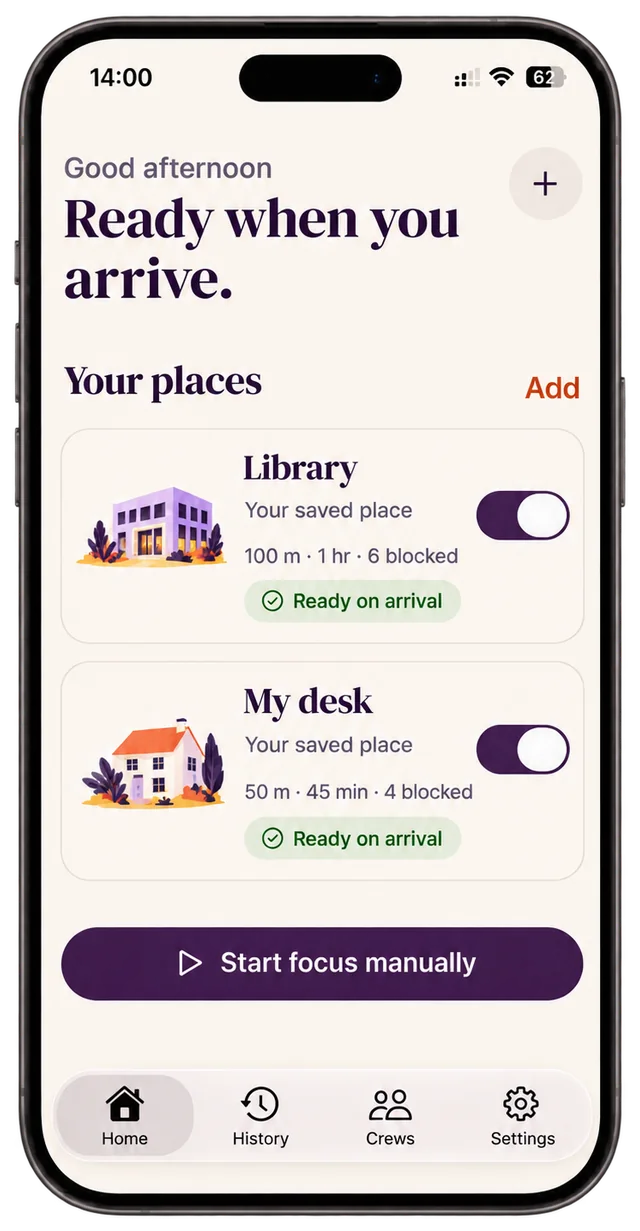
Set a place up once. After that, arriving is the only thing you have to do.
How Focusbound works
Step 1: Save a place
Drop a pin on the library, your desk or the gym and choose its boundary, from 50 m up. Give it a name and a length.

Step 2: Choose your apps
Pick the apps, categories and websites to quiet there, in Apple’s own picker. Focusbound only ever sees how many you chose.

Step 3: Arrive and focus
When your iPhone notices you’ve arrived, the session starts and those apps are shielded. You can also start one by hand, anywhere.
Two permissions, in plain words
Screen Time lets Focusbound shield the apps you picked. Apple handles the picker and never tells Focusbound which apps they are.
Location, set to Always lets your iPhone notice when you enter or leave a saved place, even with the app closed. Location is only used for that, and it never leaves your phone.
What to expect
iPhones notice arrivals in the background, usually within a couple of minutes of crossing the boundary. The smallest boundary is 50 m, so it works for a building, not a single room.
Focusbound blocks the apps you chose, not your whole phone. Calls and Focusbound itself always work.
See the block
What happens on the phone.
Focusbound uses Apple’s Screen Time to shield the apps you chose, nothing more. Your other apps keep working.
What happens on the phone
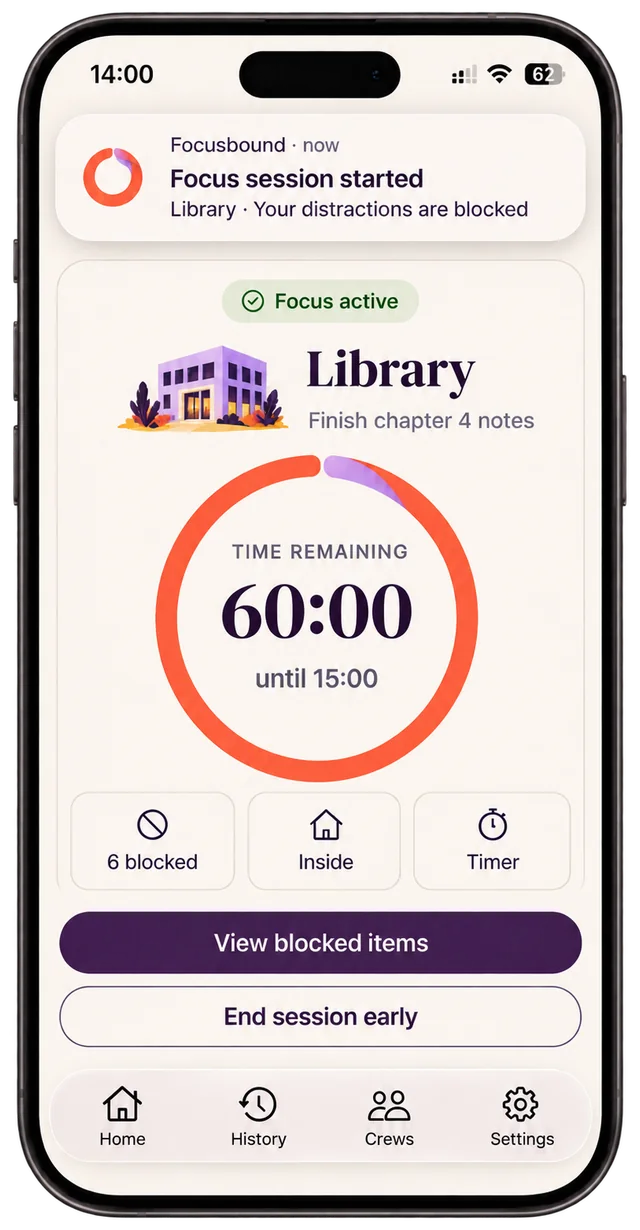
Frame 1: You arrive
A notification confirms the session, and your chosen apps are shielded.
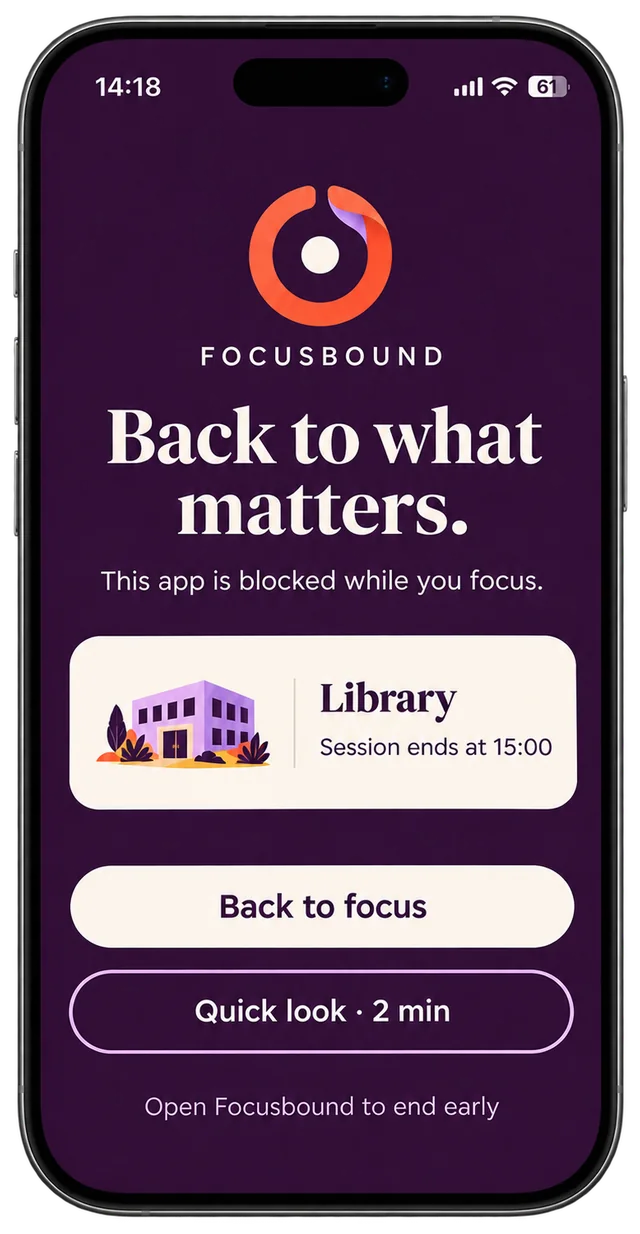
Frame 2: You open a blocked app
Apple shows Focusbound’s shield instead. One Quick look per session opens that app for a few minutes, then it re-blocks by itself.
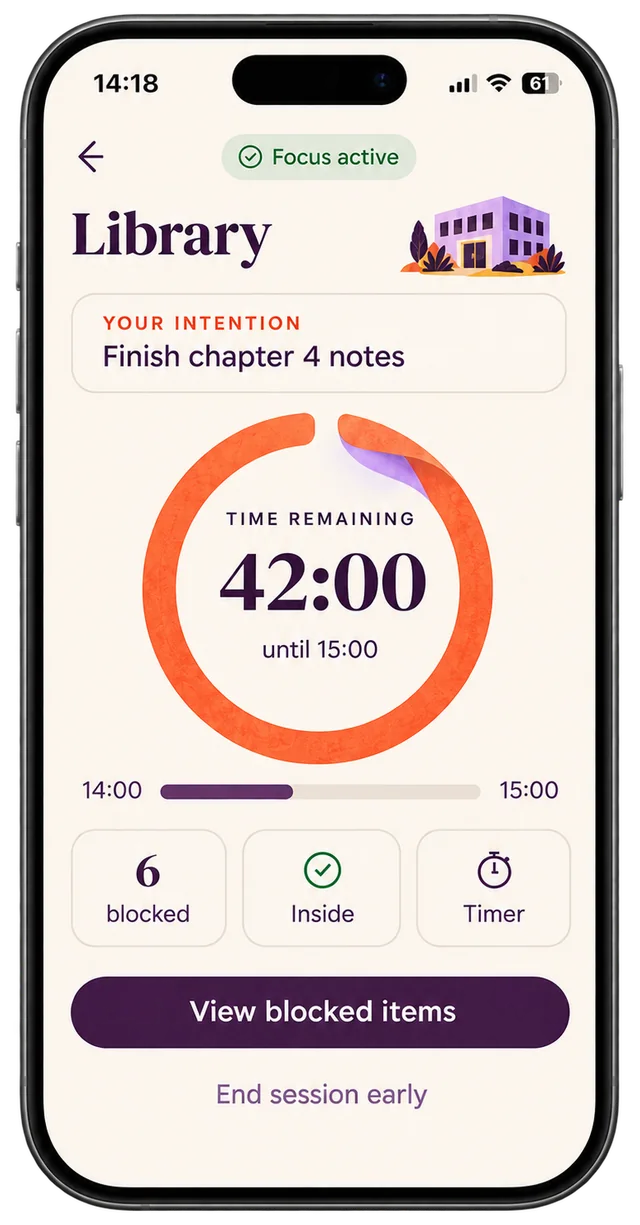
Frame 3: You stay with it
The session screen shows the time left and your intention. Ending early takes a deliberate hold, and immediate access is always there for real life.
Timer or Until I leave
Pick how each place ends.
Every place has its own length and its own way of finishing. Both are on Free and Pro.
How a session ends
Timer
Runs to the planned end, even if you leave.
Good for a desk at home or a set revision block. Pick a length or an end time. If you need to finish sooner, a deliberate hold ends it early.
Until I leave
Ends when you leave, or when the time runs out.
Good for the library or the gym. The place’s length is the longest a session can run. When your iPhone notices you’ve left, focus ends and counts as completed. iOS usually notices a few minutes after you pass the boundary, so expect it on the walk away, not at the door.
Crews
Lock in with your crew.
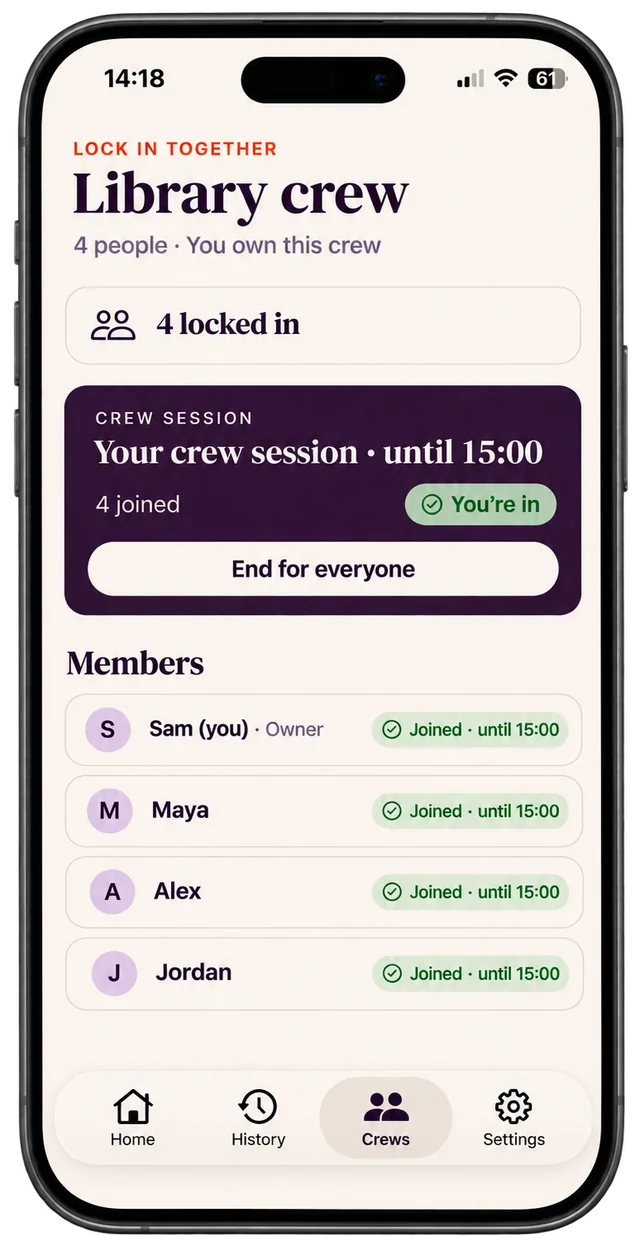
A crew is a small, private group of friends. See who’s locked in right now, focus at the same time, and finish together.
Crews
Invite by link, code or QR
Every crew has a 6-character code like K7Q-2MX. Share it as a link, read it out, or let friends scan the QR code with their iPhone camera. Crews hold up to eight people.
The host starts, everyone taps to join
The crew’s owner, or an admin they chose, starts a crew session of 30 minutes to 2 hours. Everyone else gets one notification and joins with a tap. Nobody’s phone locks without their own tap.
Everyone’s own apps, or lock everything
Each person blocks their own list, or the host can choose Lock everything: every app and website on each joiner’s phone, apart from the ones they always allow. Phone and Focusbound stay open.
End for everyone
When the host ends it, or the owner or an admin taps End for everyone, each phone unlocks. Leaving early is always allowed; the host is told who left and how long was left, never why.
Locations are never shared. Crews use an account (Sign in with Apple) and share your display name, whether you’re focusing and your session times. Your places, your location and the apps you block stay on your iPhone. Crews are for ages 13 and over.
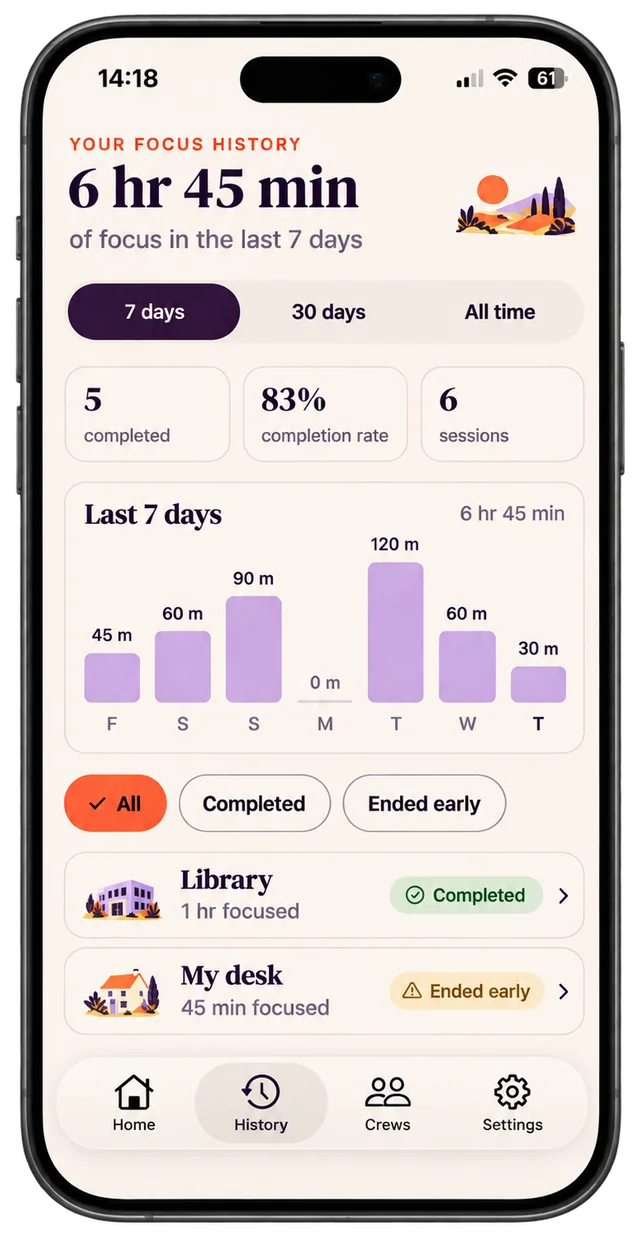
Your progress
See the hours add up.
History keeps every session: where, how long, and how it ended. Completed, ended early, left the place or crew ended, each is recorded honestly.
Your progress
Focusbound Free shows your latest 7 days. Pro shows your full history.
Your shelf
Each place has a small shelf. Finish sessions there and it fills with pieces for a cosy study scene. It’s cosmetic, and it never touches what gets blocked.
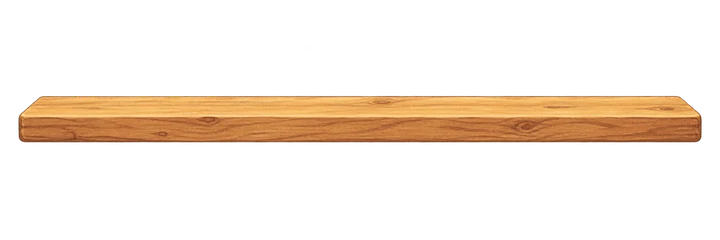


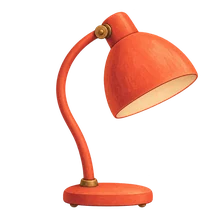

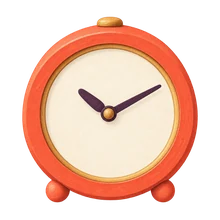
Sample shelf. Pieces unlock as your completed focus time at a place grows.
Free and Pro
Start free. Go further with Pro.
Free is a complete app with one automatic place. Pro is for more places and more crews.
Free and Pro
| What you get | Free | Pro |
|---|---|---|
| Automatic places | 1 | Up to 20 |
| Apps, categories and websites to block | Your choice | Your choice |
| Timer and Until I leave | Included | Included |
| Quick look and intentions | Included | Included |
| Focus history | Latest 7 days | Full history |
| Crews you can be in | 1 | Up to 5 |
| Crews you can host sessions in | 1 | Up to 5 |
| Joining a crew session | Always free | Always free |
| Your shelf | Included | Included |
Pro is a subscription through the App Store. Pricing and any free trial are shown in the app and on the App Store before you subscribe.
FAQ
Questions, answered plainly.
Frequently asked questions
Which permissions does Focusbound need?
Screen Time, so it can shield the apps you pick, and Location set to Always, so your iPhone can notice when you arrive at or leave a saved place while the app is closed. Notifications are optional and only used for session updates and crew alerts.
Does it block my whole phone?
No. It shields the apps, categories and websites you chose for that place. Everything else works. In a crew session the host can choose Lock everything, which shields every app and website apart from the ones you always allow; Phone and Focusbound always stay open.
What is the difference between Timer and Until I leave?
A Timer place runs to its planned end wherever you go. An Until I leave place also ends when your iPhone notices you have left, or when its time runs out. You choose per place.
What do my friends see in a crew?
Your display name, whether you are focusing right now, until when, and your focus time this week. Never where you are, and never which apps you block.
Can someone else lock my phone?
No. In a crew session, you tap Join on your own phone every time. Blocking always runs on your own device with your own Screen Time permission.
How do I end a session early?
Open Focusbound and hold the ring to end early. If you need your phone right now, Immediate access unlocks everything straight away and records the session as an override. If you leave a crew session early, the host and admins are told who left and how long was left, never why.
What does End for everyone do?
The host, the crew's owner or an admin can end a crew session for the whole crew. Everyone still in it gets a notification and their phone ends its own session. iOS can delay this for an app that was force-quit, in which case tapping the notification or opening Focusbound ends it.
Can I get around a block?
Yes, if you really want to. You can end early from inside the app, change Screen Time or location settings, or delete the app. Focusbound is a boundary you chose, not a lock you can't open, and it says so plainly in onboarding.
Which devices does it work on?
iPhone only. It uses Apple's Screen Time and location features, so there is no Android, iPad or Mac version.
What is free, and how do I manage a subscription?
Free includes one automatic place, your latest 7 days of history and one crew. Pro adds up to 20 places, full history and up to 5 crews. Pro is an App Store subscription: manage or cancel it in your iPhone's Settings, under your Apple Account, then Subscriptions.
Your focus has a place.
Focusbound is coming soon to iPhone. Until then, see how it works, or read how it handles your data.